Module 3: ChatGPT step-by-step (beginner friendly)
In this module you will learn the basic 'buttons and habits' for ChatGPT. By the end you will be able to start a chat, ask good questions, copy the answer, and stay in control of your privacy.
3.1 What you need
- An internet connection
- A phone, tablet, or computer
- A ChatGPT account (free is fine to start)
3.2 Opening ChatGPT
You can use ChatGPT in a web browser or in the app. The experience is very similar.
- On a phone/tablet: open the ChatGPT app.
- On a computer: open your web browser and sign in to ChatGPT.
3.3 Starting a new chat
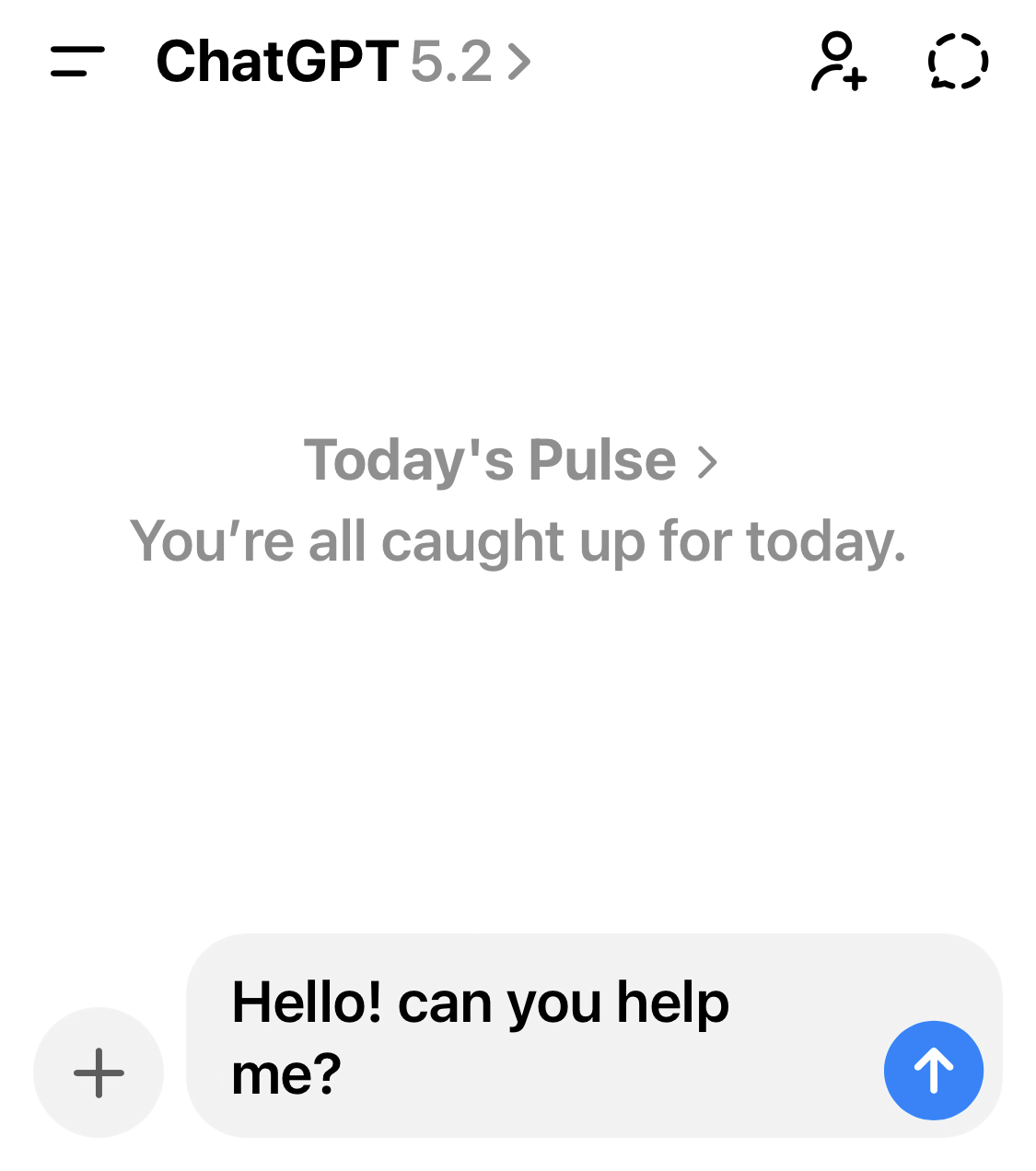
Most people get better results by starting a new chat for a new topic. It keeps things clean and avoids confusion.
- Tap or click New chat (sometimes shown as a pencil icon).
- Look for the message box at the bottom of the screen.
- Type your request, then send it.

3.4 Your first message (a safe starter)
Try this prompt. It is useful, safe, and it shows you how the conversation style works:
I am new to AI. Please explain what you can help with in everyday life. Keep it under 10 dot points. Use simple language.Now practise a follow-up:
Thanks. Pick the top 3 and give me an example for each.3.5 If you get a 'too long' or 'too complicated' answer
You can steer the style. You are allowed to be bossy. In fact, the AI prefers it.
- Rewrite that in simpler words.
- Give me the short version first, then the long version.
- Answer in dot points only.
- Use a friendly tone. No jargon.
3.6 Talking instead of typing (voice)
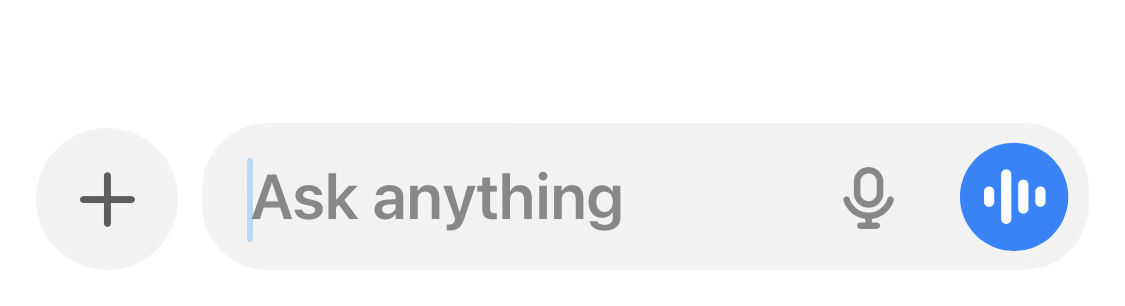
If typing is uncomfortable, voice can be a game changer. Many people find it more natural.
- Look for a microphone icon near the message box.
- Tap it and speak normally.
- If you forget something, add it in a follow-up message.
3.7 Using photos and files
ChatGPT can often read what you upload (depending on your plan and settings). This is useful for things like:
- A photo of a confusing instruction sheet (with personal details removed)
- A letter you want summarised (remove identifying details first)
- A document you want turned into a checklist
- Look for an attachment or plus icon near the message box.
- Choose a photo or file to upload.
- In your message, tell the AI what you want it to do with it.
Please summarise this document in plain English. Then list any actions I need to take. If something is unclear, list questions I should ask.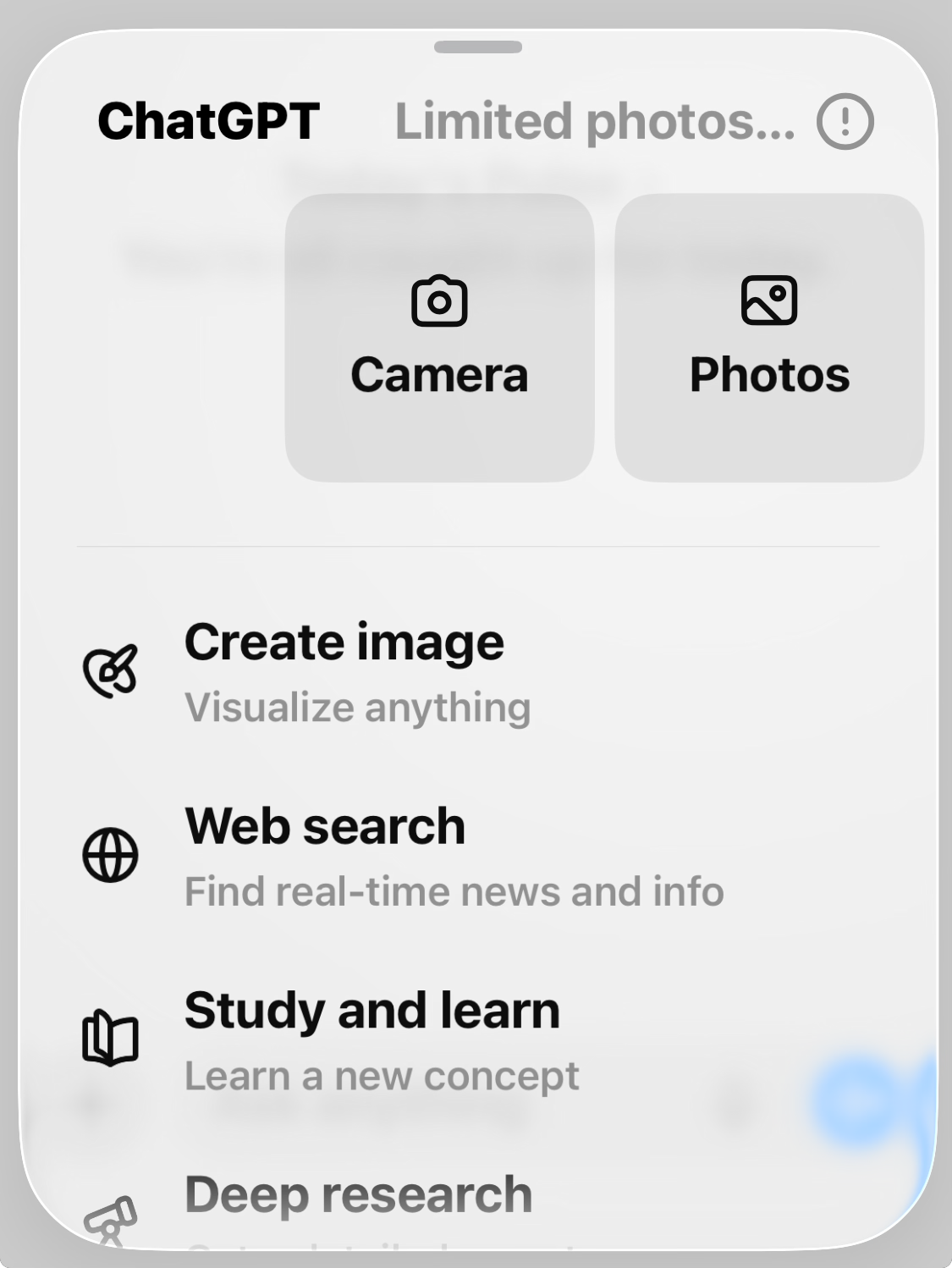
3.8 Tools you might see (and what they mean)
ChatGPT sometimes shows extra tools. The exact layout changes, but the ideas stay the same.
- Search: helps the AI look things up. Useful when you want up-to-date info.
- Data analysis: useful for tables, budgets, basic spreadsheet-style work, and checking numbers.
- Vision: helps with understanding images and screenshots.
- Study mode: a learning mode that guides you step-by-step instead of just giving answers.
If you do not see these tools, do not worry. You can still use ChatGPT very effectively with normal chat.
3.9 Study Mode (optional, but great for learning)
OpenAI introduced a 'study mode' designed to guide you step-by-step rather than giving a quick answer. If you are learning something new, this can reduce confusion and help you remember what you learned.
I want to learn this step-by-step. Ask me questions as we go and check that I understand before moving on: [TOPIC].3.10 Memory and Temporary Chat (staying in control)
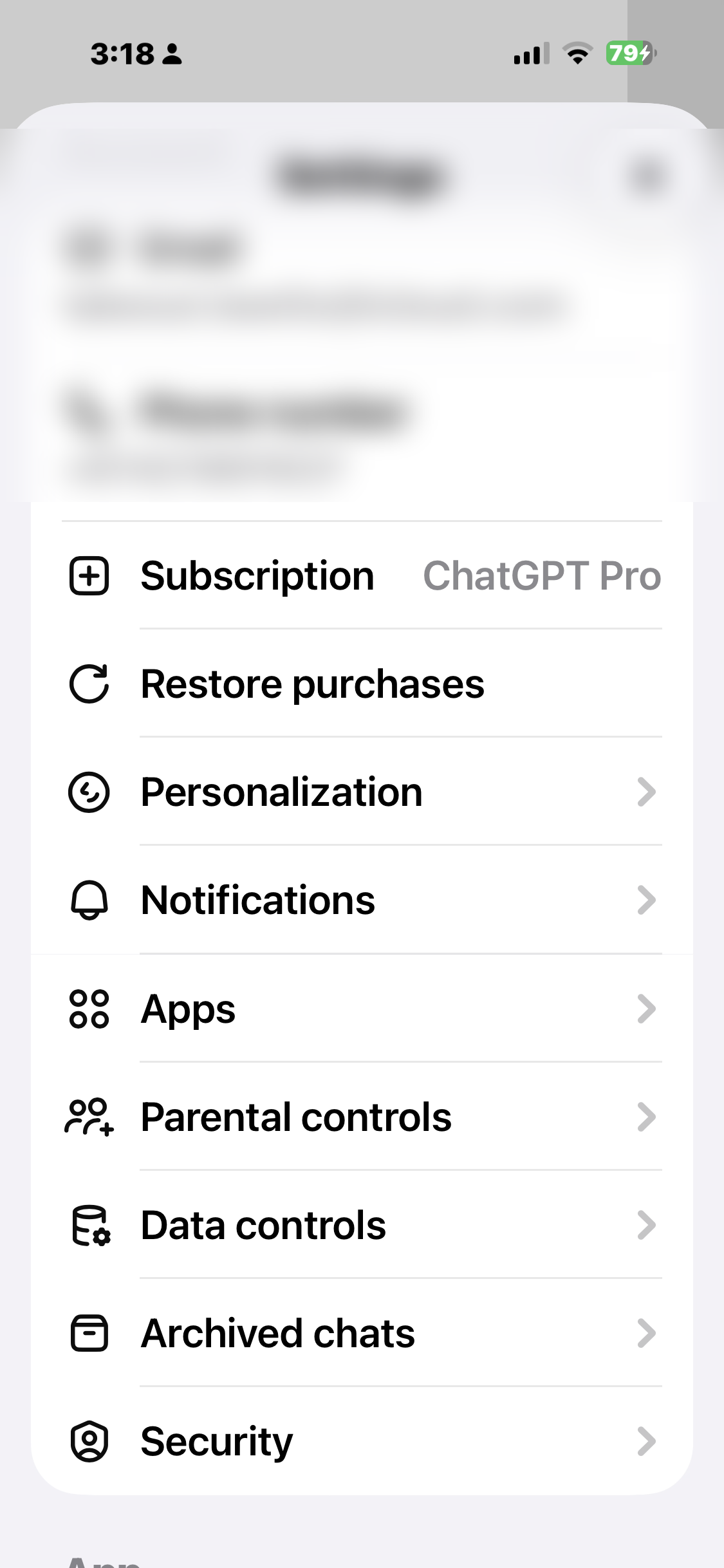
ChatGPT may offer memory features. If memory is on, ChatGPT may remember certain details you have asked it to remember, to help in future conversations.
The important part is: you are in control. You can turn memory off, delete individual memories, clear all memories, or use a temporary chat for a one-off conversation.
3.11 Copying, sharing, and saving answers
Most people use AI answers in other places: emails, documents, notes, messages. Here are simple ways to save them.
- Copy/paste: highlight the answer, copy it, then paste it into Notes or Word.
- Ask for the exact format you need: 'Write this as an email with a subject line.'
- Ask for a shorter version before copying: 'Reduce this to 3 sentences.'
Rewrite this to be clearer and more polite. Keep the meaning the same:

[PASTE YOUR TEXT HERE]
3.12 Common beginner mistakes (and how to fix them)
- Mistake: being too vague. Fix: add 2-3 details and ask for a format.
- Mistake: trusting it blindly. Fix: use the 3-check method from Module 2.
- Mistake: giving too much private information. Fix: redact and use placeholders.
- Mistake: trying to do everything in one message. Fix: do it in small steps.
3.13 Practice tasks (ChatGPT)
Do these in order. They are designed to build confidence.
- Write a short message: 'Write a friendly text to confirm lunch tomorrow at 12:30.'
- Refine: 'Make it warmer, but still short.'
- Make a checklist: 'Checklist for preparing for a family dinner for 6 people.'
- Summarise: paste a paragraph you wrote and ask: 'Summarise this in 5 dot points.'
- Safety habit: take a suspicious text message and ask for scam red flags (with personal info removed).
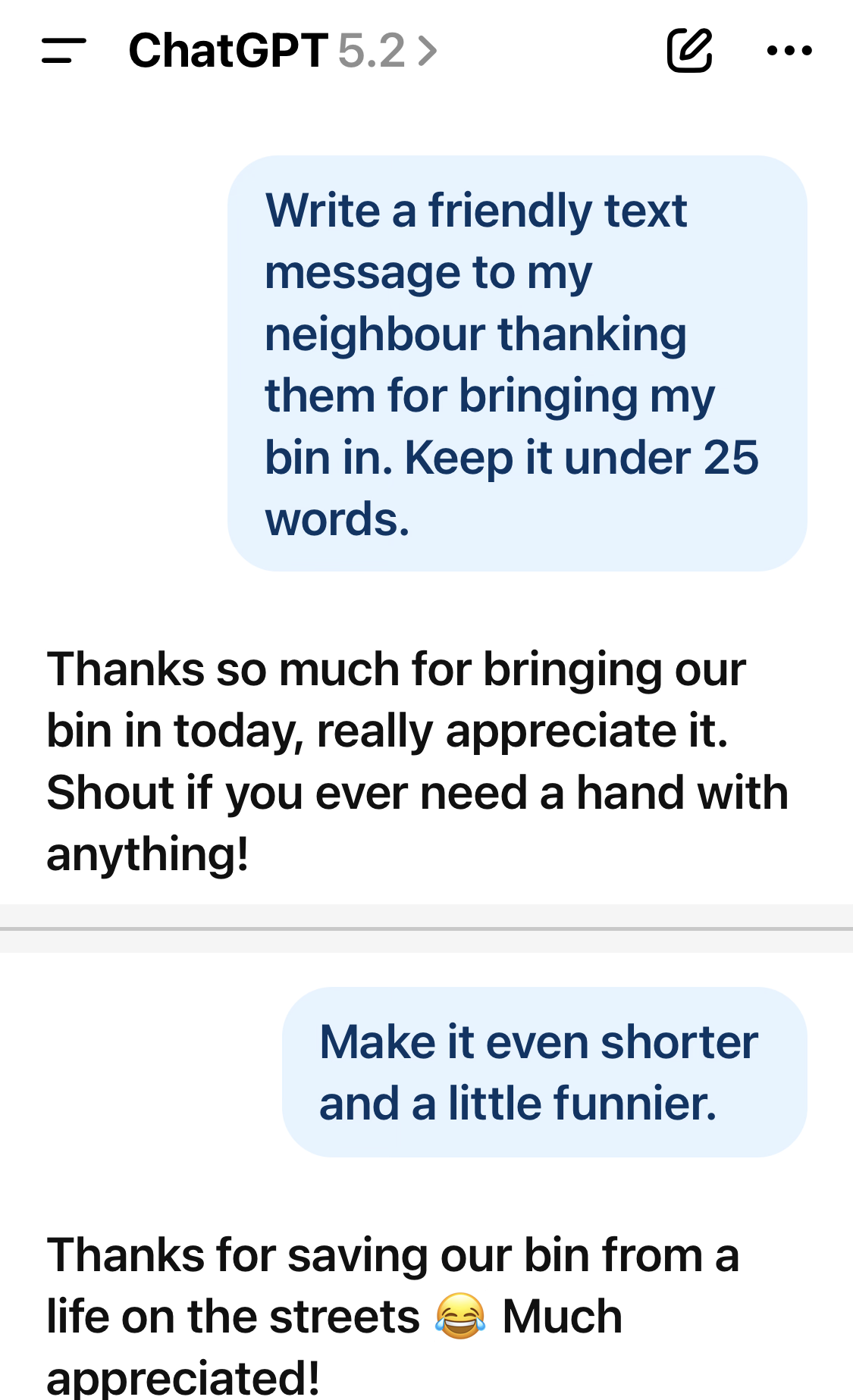
3.14 Screenshotss for Module 3
These screenshots make the steps feel real: